How to use a voice golf scorecard
By Chalk Golf · · Updated
A voice golf scorecard lets you describe a shot or hole instead of entering every detail by hand. In Chalk, you hold the microphone button, speak, then release it. Review the score and notes before moving on. You can use the on-screen controls whenever that is easier.
The useful part is the detail beside the number: which club you chose, where the ball finished, or what you would do differently next time. Here is how to capture it during a round.
1. Start the round and check the hole
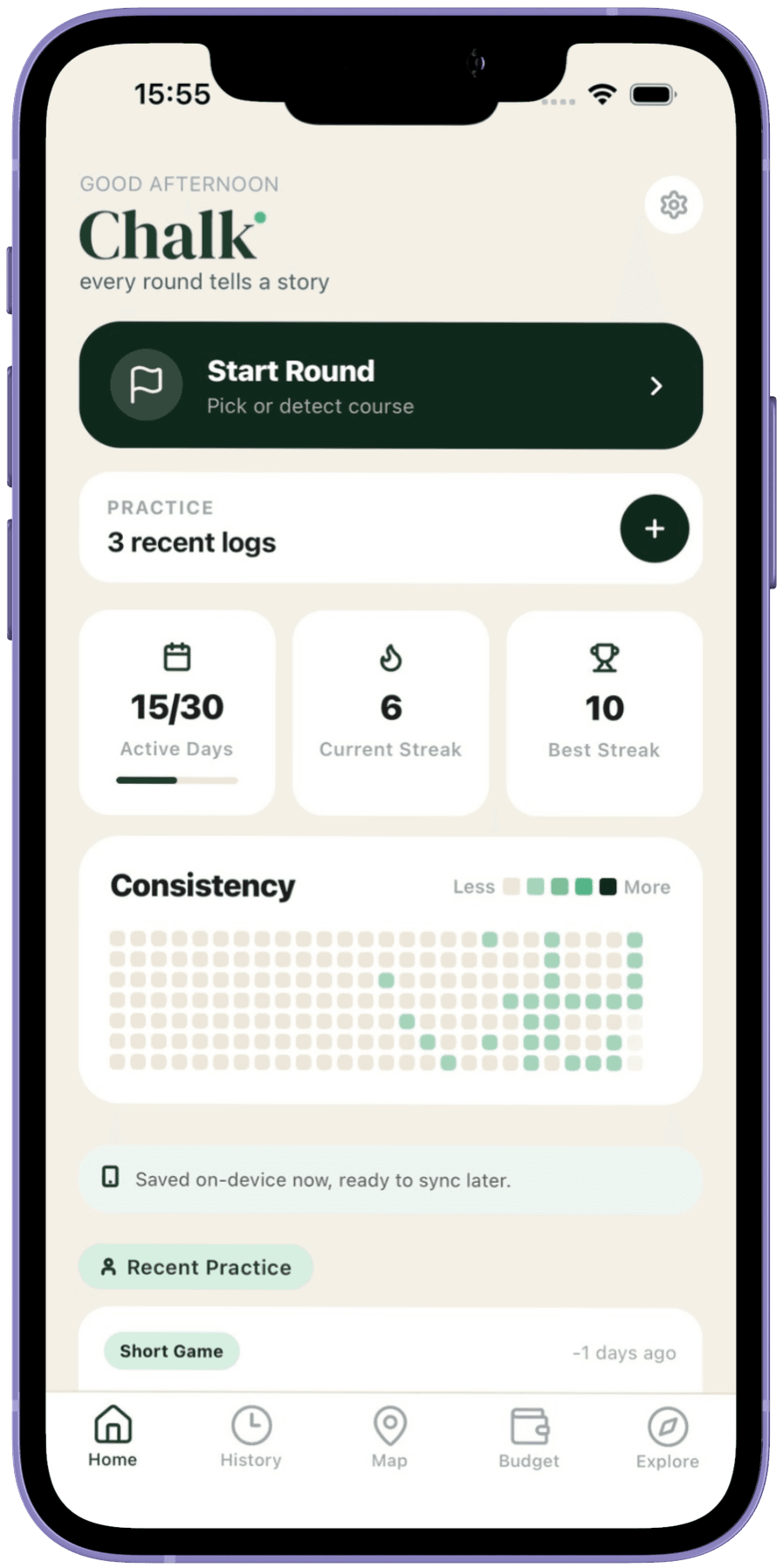
Choose Start Round from the home screen, then select your course. Check that the active hole is the one you want to record. A clear sentence attached to the wrong hole still needs correcting.
Before your first voice entry, allow microphone and speech-recognition access when asked. If you previously denied access, open your phone’s settings to enable it. Voice recognition must be available on your device; manual scoring remains an option.
2. Hold the microphone, speak, then release
Hold the mic and wait until the app shows Listening. Describe what happened in a short sentence, then release the button when you finish. Wait for the result rather than repeating the same entry while it is still processing.
These are examples of useful descriptions, not a promise that every phrase will be interpreted perfectly:
| What you want to keep | Example phrase | What to check afterwards |
|---|---|---|
| A hole score | “Five on this hole, with two putts.” | Hole number, total strokes and putts |
| A shot note | “Seven iron, finished short of the green.” | Club and result |
| A decision for next time | “The wind was stronger than I thought. Take more club here.” | The note keeps the observation you meant |
You do not need to narrate every swing. A score and one useful observation can be enough. If a playing partner is preparing a shot, leave your entry until a suitable moment.
See the voice-scoring example on the homepage to get a feel for the input and output. That website example is illustrative; it does not record your microphone.
3. Check the result and correct mistakes
Read the score and note after processing finishes. Wind, background conversation and unclear numbers can cause recognition errors. Check penalties and putts rather than assuming the app inferred them correctly.
For a note correction, press and hold the note card to open Edit note. Change the text or fields such as club and distance, then choose Save. You can also choose Talk to fix this note, then hold the mic and describe the correction. For example: “Change the club to an eight iron.” The app also offers a short-lived Undo control after a note edit or deletion.
If the hole score is wrong, use the score controls to correct it. Editing the words in a note is not the same as checking that the scorecard total is right. Review both before finishing the round.
4. Read your notes after the round
Return to your saved rounds and read the observations while the holes are still familiar. Look for a decision you can act on: a club you repeatedly leave short, a risky line that does not suit your usual miss, or a putt you read well.
Voice notes and shot statistics answer different questions. A note can preserve your intention; a shot tracker can build a more detailed record of where shots finished. Our Arccos comparison and Shot Scope comparison explain the different recording methods without assuming you must choose only one.
What happens with poor signal?
Do not assume every voice feature works without a connection. Speech recognition depends on your phone and its available recognition service, and cloud processing needs internet access. Some captures may be queued for retry, but an offline indicator is not confirmation that a score has been processed.
Check the saved result. If voice input is unavailable or an entry is pending, use manual scoring and review pending entries when you reconnect. It is worth trying your setup before relying on it for a full round with patchy reception.
Is voice scoring free?
Chalk’s The Round plan includes one 18-hole round with voice logging, a scorecard and a transcript. Paid plans include unlimited rounds; see current plans and the terms shown in your app store.
The website’s golf calculators are separate: they are free to use without an account. Use the Course Handicap calculator for your tees or the Playing Handicap calculator for your format.
If something is not working, contact Chalk support. Include your phone model, app version, connection status and what happened.